
If your internet is slow, dropping out, or inconsistent, your Wi-Fi router is often the cause—even if you’re on a fast business internet plan. In many cases, performance issues come down to router capability, configuration, or placement rather than the internet connection itself. This guide will help you identify whether your router is limiting your business internet performance and what to do about it.
When to use this guide
Use this guide if you’re experiencing:
- Slow internet across the office
- Dropouts during video calls
- Poor Wi-Fi in certain areas
- Performance issues with multiple users
- Inconsistent speeds throughout the day
If these sound familiar, your router may be the bottleneck.
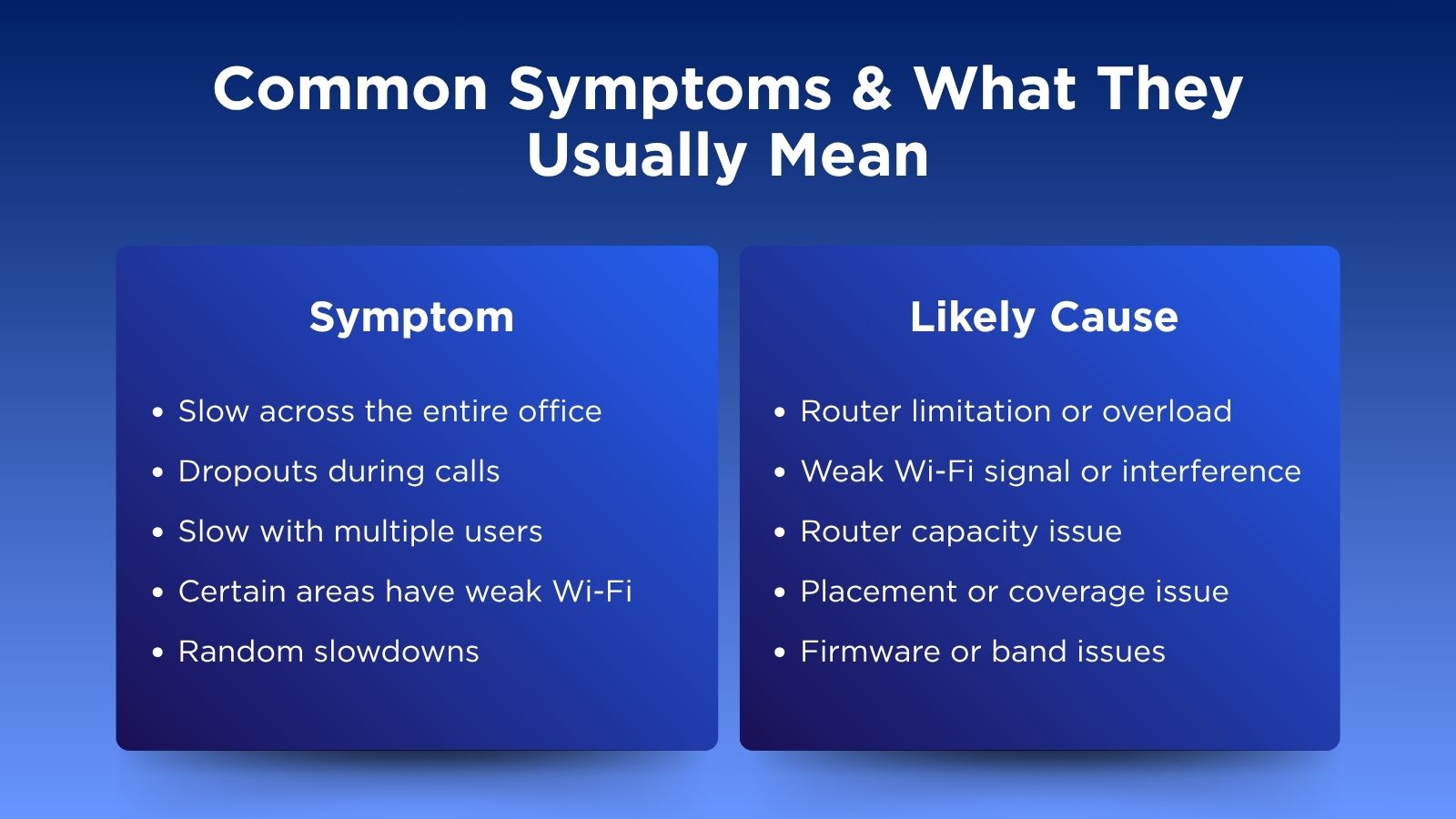
Here’s a quick breakdown of the most common business internet issues and what’s likely causing them
1. Check your router’s age and capability
Routers are not built to last forever. Over time, they struggle to keep up with modern business demands.
Check:
- Is your router more than 3–5 years old?
- Does performance drop when more people connect?
- Does it struggle with cloud apps or video calls?
Older routers often lack the processing power needed for today’s workloads.
2. Check Wi-Fi standard (Wi-Fi 6 or newer)
Modern business environments should use Wi-Fi 6 (802.11ax) or higher.
Why it matters:
Wi-Fi 6 improves:
- Performance with multiple users
- Stability in busy environments
- Efficiency for cloud-based applications
If your router only supports older Wi-Fi standards (Wi-Fi 4 or Wi-Fi 5), it may be limiting your internet speed.
3. Check device compatibility
Your router is only one part of the system—your devices also matter.
Look for:
- Older laptops or phones using outdated Wi-Fi standards
- Devices that feel slow even on good internet
- Mixed performance across devices
Older devices may not fully utilise faster networks.
4. Check Wi-Fi band settings
Modern routers use multiple frequency bands:
- 2.4 GHz – longer range, slower speeds
- 5 GHz – faster speeds, shorter range
- 6 GHz – newest and least congested
Many routers use band steering to automatically assign devices, but incorrect settings can impact performance.
Check:
- Are devices connecting to the right band?
- Is band steering enabled?
5. Check router placement
Router location directly impacts performance.
Best practice:
- Place the router centrally in the office
- Keep it elevated (not on the floor)
- Leave it in an open space
Avoid:
- Cupboards or enclosed spaces
- Corners of the building
- Behind furniture or metal objects
Poor placement often causes “fake slow internet” issues.
6. Check for interference
Wi-Fi signals can be disrupted by common office materials and devices.
Common interference sources:
- Thick walls and concrete
- Metal shelving or doors
- Microwaves and appliances
- Bluetooth devices
If your Wi-Fi drops in specific areas, interference is likely the cause.
7. Check firmware and updates
Router software needs regular updates to maintain performance and security.
What to do:
- Check for firmware updates in router settings
- Keep software up to date
- Contact your provider if unsure
Outdated firmware can cause instability and reduced performance.
When your router is the problem
Your router is likely the issue if:
- Speed is inconsistent across the office
- Video calls regularly drop or lag
- Performance worsens with more users
- Wi-Fi coverage is poor despite a good internet plan
When it’s not just the router
If your router checks out fine, the issue may be:
- Internet plan limitations
- Network congestion
- Poor Wi-Fi coverage design
- Too many active users or devices
Still having issues?
If you’re not sure what’s causing your internet problems, we can help review your setup and identify the issue. We work with Melbourne businesses to improve speed, stability and overall network performance. Get in touch and talk to our team today